
Tray Integration
Learn how to set up OneClick Tracking on Tray.
OneClick Tracking is a feature for Meta Ads advertisers who use Tray as their e-commerce platform. You connect your store directly to your ad account, and every paid order starts being recorded by OneClick.
With OneClick Tracking you see the volume of real conversions per period right in your Ads Manager, making for a quick, clear audit without complicated dashboards that need to be kept up to date.
Note: OneClick Tracking removes the need for extra tracking tools!
How to Plug OneClick Tracking into Tray
Section titled “How to Plug OneClick Tracking into Tray”-
Log in to your OneClick Ads account.
-
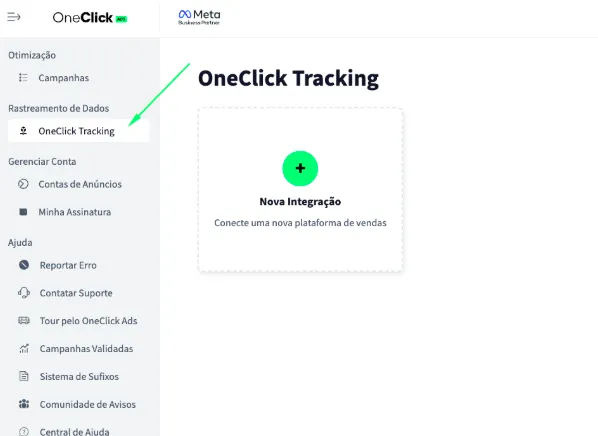
Go to the "OneClick Tracking" tab, available in the left sidebar of OneClick Ads.
-
Click "New Integration".
-
Select the "E-commerce" product type and click Continue.
-
Select the "Tray" platform and click Continue.
-
In the Tray Integration step, enter your Tray store address and click Connect Tray store.
- Use the store address on Tray’s own domain, which ends in
.commercesuite.com.bror.corpsuite.com.brand appears in your Tray admin. It can be typed with or withouthttps://. - You’ll be taken to your store’s admin to authorize OneClick Ads to access it.
- After you confirm, you’ll automatically return to OneClick Tracking, where the Tray store connected notice appears. Click Continue.
- Use the store address on Tray’s own domain, which ends in
-
Copy the UTM Script generated in OneClick Tracking.
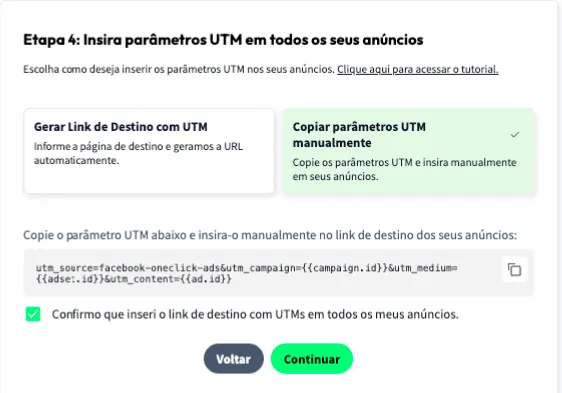
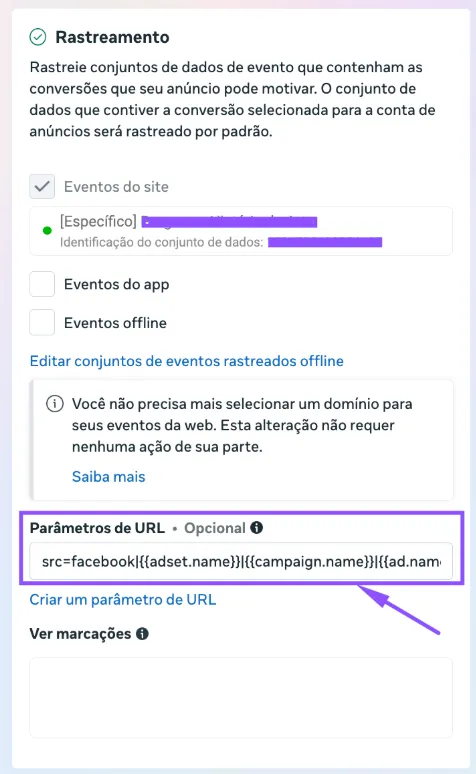
7.1. Paste it into the "URL parameters" field in ALL of your ads in Ads Manager, as shown below:
-
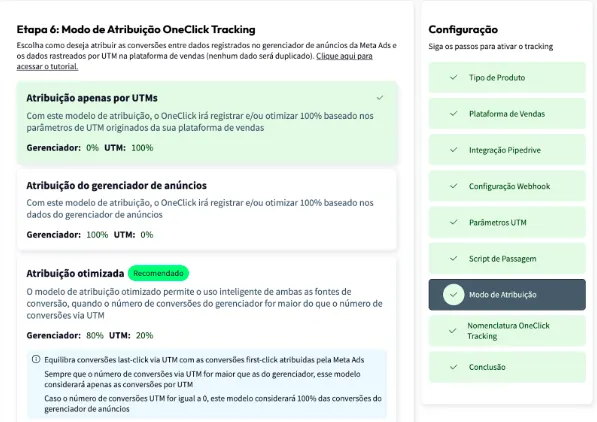
Set the Attribution Mode.
- Watch this video to understand each model.
- Click Continue.
-
Set the Naming Convention that your campaigns, ad sets and ads will receive in your Ads Manager and click next.
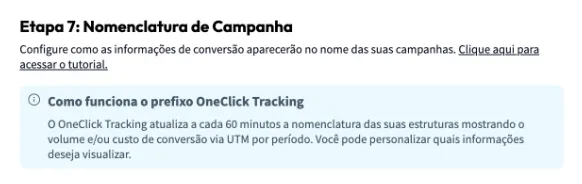
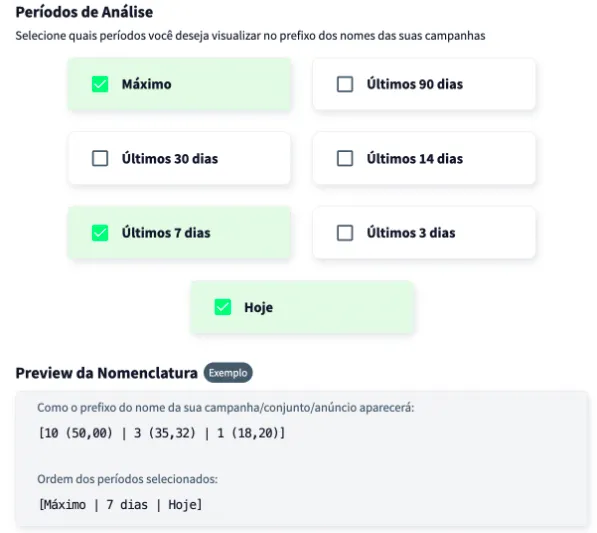
Wait at least 24 hours for the setup to take effect, and all your campaigns (those that receive conversions) will start recording conversions right inside Ads Manager.
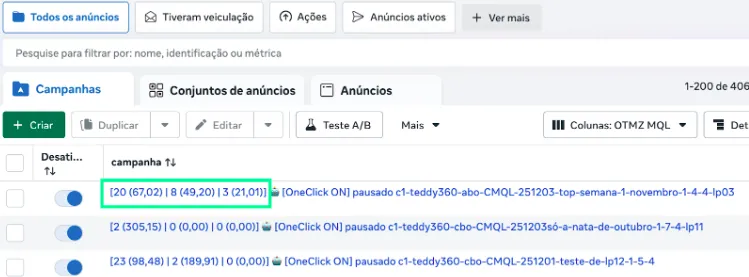
Important Notes
Section titled “Important Notes”- Orders that count: OneClick Tracking records paid orders. Orders awaiting payment or canceled are not counted. If your store uses custom statuses, an order counts when Tray reports it as paid.
- Conversion origin: Tray doesn’t record UTMs on the order, so how each sale is tied to the ad that generated it is still being validated for this integration. If sales reach OneClick Tracking but don’t show up associated with campaigns, contact support.
- Switching stores or renewing the authorization: open the existing integration and click Connect Tray store again. You can do this whenever you want to change the connected store or renew the authorization, without creating a new integration.
- Authorization refused by Tray: if Tray stops accepting your store’s authorization (for example, after the app is removed in the admin), OneClick notifies you. Connect the store again, as described above, to resume recording sales.
- Error while connecting: if Tray sends you back to OneClick with an error notice, check that the store address ends in
.commercesuite.com.bror.corpsuite.com.brand try again. If the notice mentions an invalid or expired authorization link, go back to the Tray Integration step and click Connect Tray store once more.