DataCrazy Integration
Learn how to set up OneClick Tracking on DataCrazy CRM.
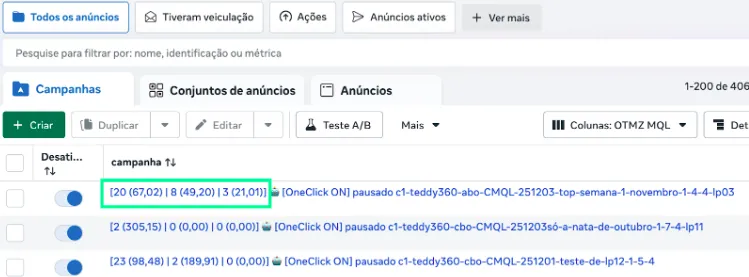
OneClick Tracking records as conversions the DataCrazy deals that reach the funnel stages you choose, and ties each one to the Meta ad that brought the lead. Your campaigns’ CPA and ROAS then reflect your sales team’s real sales.
Before you start: where the lead’s origin comes from
Section titled “Before you start: where the lead’s origin comes from”For OneClick to know which ad each deal came from, it reads the lead linked to the deal:
- WhatsApp leads from an ad (Click to WhatsApp): DataCrazy stores the ad’s origin on the lead itself, and OneClick reads it with no setup.
- Form or website leads: keep the UTMs in lead additional fields with these names:
utm_sourceutm_mediumutm_campaignutm_contentutm_term
A deal without an origin stays in your DataCrazy as usual, but it does not become a tracked conversion, because there is no ad to attribute it to.
How to Connect OneClick Tracking to DataCrazy
Section titled “How to Connect OneClick Tracking to DataCrazy”-
Log in to your OneClick Ads account.
-
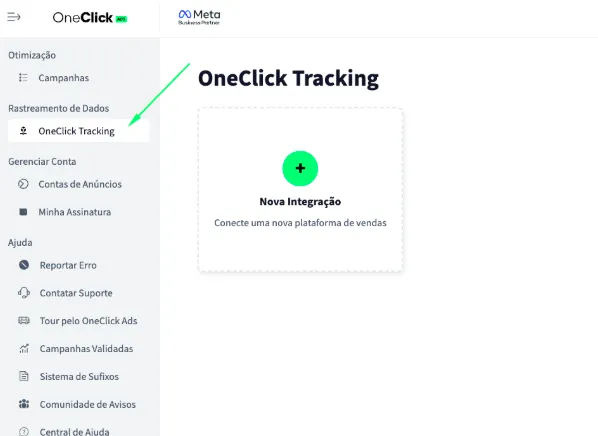
Go to the "OneClick Tracking" tab, available in the left sidebar of OneClick Ads.
-
Click "New Integration".
-
Select the "Lead Generation" product type and click Continue.
-
Select the "DataCrazy" platform and click Continue.
-
Paste the DataCrazy API key and click Connect. a. In DataCrazy, open Configurações → Chaves de API (Settings → API keys) and click Criar nova chave (Create new key). b. Copy the key right away: it is shown only once. If you set an expiry date, create a new key and reconnect the integration before that date.
-
Choose which stages count as a conversion. a. OneClick lists your account’s funnels and the stages of each. b. Tick the stages that are a real conversion for your business (for example, the stage where won deals sit).
-
Copy the UTM Script generated in OneClick Tracking.
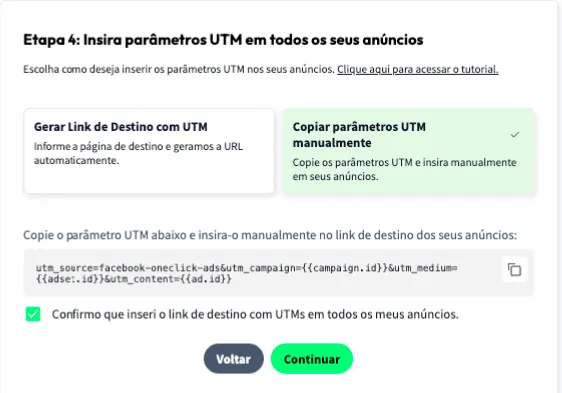
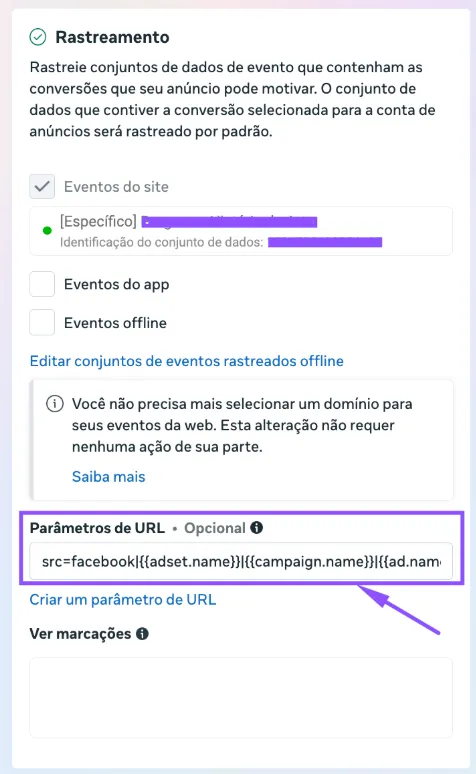
8.1. Paste it into the "URL parameters" field in ALL of your ads in Ads Manager, as shown below:
- Add the UTM Passthrough Script to all your sales pages, so the UTMs are automatically carried into the card of each lead generated. a. You can install it on your website via Google Tag Manager or, preferably, directly in your website's header.
- Set the Attribution Mode.
- Watch this video to understand each model.
- Click Continue.
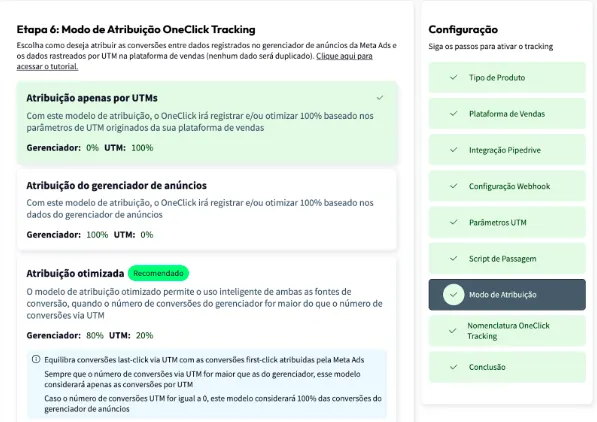
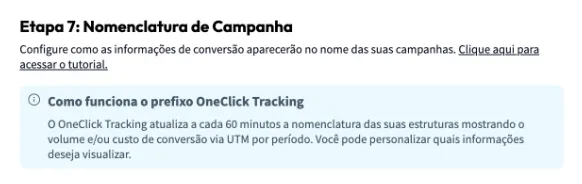
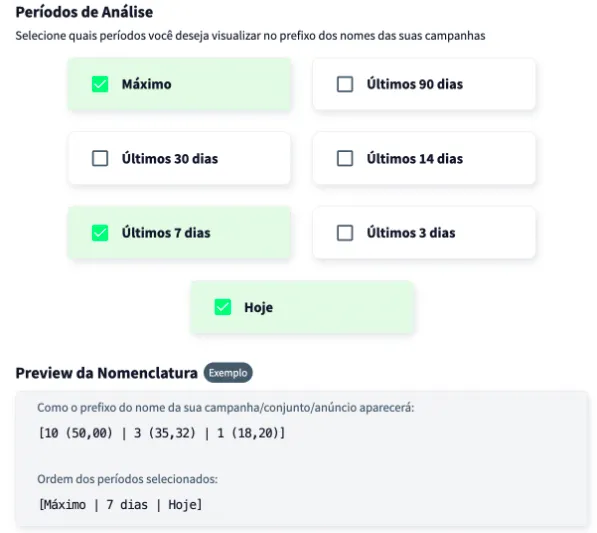
- Set the Naming Convention that your campaigns, ad sets and ads will receive in your Ads Manager and click next.
-
Copy the Webhook URL generated by OneClick and create, in DataCrazy, the automation that notifies OneClick:
11.1. In DataCrazy, create a new automation with the deal won trigger. If you also ticked intermediate stages in step 7, create another automation with the deal stage changed trigger.
11.2. Add the HTTP request (API / Webhook) node, with the POST method and OneClick’s Webhook URL in the URL field.
11.3. In the request body (JSON), send the deal ID in the
dealIdfield, picking the deal ID variable from DataCrazy’s variable list:{"dealId": "<deal ID variable>"}11.4. Save and turn on the automation.
Important Notes
Section titled “Important Notes”- Each stage you chose counts once per deal: the same deal moved to the same stage again does not create a duplicate conversion. If you choose more than one stage, a deal that goes through all of them counts once in each.
- Lost deals never count as conversions.
- The value recorded is the deal’s total value.
- DataCrazy limits its API to 60 requests per minute. In accounts with more than about 60 funnels, the stage list may fail to load; if so, contact our support.
- If you change or revoke the API key in DataCrazy, reconnect the integration in OneClick with the new key.
Wait at least 24 hours for the setup to take effect, and all your campaigns (those that receive conversions) will start recording conversions right inside Ads Manager.