
Tintim Integration
OneClick Tracking — Tintim Integration
What is OneClick Tracking?
Section titled “What is OneClick Tracking?”OneClick Tracking is the OneClick Ads feature that lets you track the real conversions generated by your ads more accurately and reliably.
When you advertise on Meta Ads, each ad click carries tracking parameters called UTMs (for example, utm_source, utm_campaign). These parameters follow the visitor along the journey, from the ad to filling out a form or a lead being created in the CRM.
OneClick Tracking captures this data and, when the lead reaches the status defined as a conversion inside Tintim, records that event as a conversion attributed to the correct ad — making ROAS and campaign metrics much more accurate.
What is a webhook?
Section titled “What is a webhook?”A webhook is a way for one system to automatically send data to another system in real time, whenever a given event happens.
In this integration:
- Tintim is the one that sends the webhook (with the lead’s data) when a new lead is created or when an existing lead’s status is updated.
- OneClick Tracking is the one that receives that data and records the conversion if the lead’s status matches one of the statuses selected as a conversion.
How the integration works (overview)
Section titled “How the integration works (overview)”This integration uses a hybrid flow:
- OneClick Ads connects to your Tintim account (with your Client Code and Security Token) to list the lead statuses available.
- Inside OneClick Ads, you select which statuses should be considered a conversion.
- Tintim fires a webhook to OneClick Tracking whenever a lead is created (the
lead.createevent) or when an existing lead’s status is updated (thelead_source.updateevent). - OneClick Tracking checks whether the lead’s status matches one of the selected ones — either at creation or in a later update — and, if so, records the conversion, associating it with the correct ad through the UTMs.
Step 1 — Get the Tintim API credentials
Section titled “Step 1 — Get the Tintim API credentials”For OneClick Ads to list the lead statuses in your Tintim account, you’ll need two credentials:
- Client Code (“Código do Cliente” in the app): the unique identifier of your Tintim account.
- Security Token (“Token de Segurança” in the app): your Tintim account’s access key.
See the official Tintim API documentation to find this information in your account dashboard.
Step 2 — Set up the integration in OneClick Tracking
Section titled “Step 2 — Set up the integration in OneClick Tracking”-
Log in to your OneClick Ads account.
-
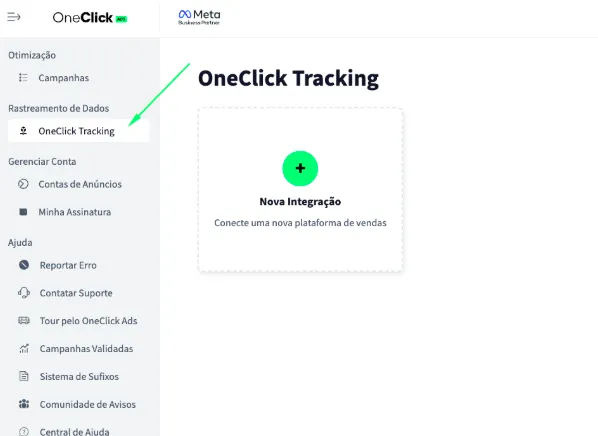
Go to the "OneClick Tracking" tab, available in the left sidebar of OneClick Ads.
-
Click "New Integration".
-
Select the "Lead Generation" product type and click Continue.
-
Select the "Tintim" platform and click Continue.
-
Enter your Tintim Client Code and Security Token and click Connect Tintim.
After connecting, OneClick Ads will automatically list all the lead statuses available in your Tintim account.
-
Select which statuses should be considered a conversion in your business (for example: “Qualificado” (Qualified), “Proposta Enviada” (Proposal Sent), “Venda Fechada” (Sale Closed)).
Important: a lead is recorded as a conversion when its status matches one of the selected statuses — either at creation or in a later update of the lead. Each lead counts only once: if it later reaches another selected status, the existing conversion is updated rather than a new one being created.
-
When you finish, the system will generate a unique webhook URL for this integration.
-
Copy this URL — you’ll use it in the next step.
Step 3 — Set up the webhook in Tintim
Section titled “Step 3 — Set up the webhook in Tintim”Tintim needs to be configured to send the lead.create event (and, optionally, lead_source.update) to the URL generated by OneClick Tracking. See the official Tintim webhook documentation for the full step-by-step.
In general terms:
- Log in to your Tintim account and go to the Configurações de Webhooks (Webhook Settings) area (or Integrações (Integrations)).
- Create a new webhook and select the
lead.createevent. If you also want to capture conversions when an existing lead’s status changes (not just at creation), also select thelead_source.updateevent. - Paste the webhook URL generated in Step 2 into the destination URL field.
- Save the configuration.
Attention: OneClick Tracking processes the
lead.createandlead_source.updateevents. Select the corresponding event(s) when setting up the webhook in Tintim, according to what you want to track.
Step 4 — Set up the UTMs in your ads
Section titled “Step 4 — Set up the UTMs in your ads”-
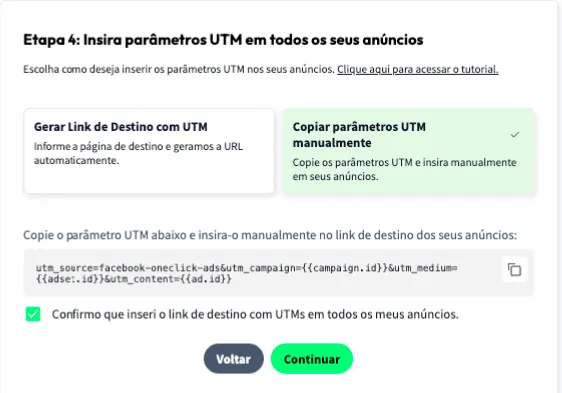
Copy the UTM Script generated inside OneClick Tracking.
-
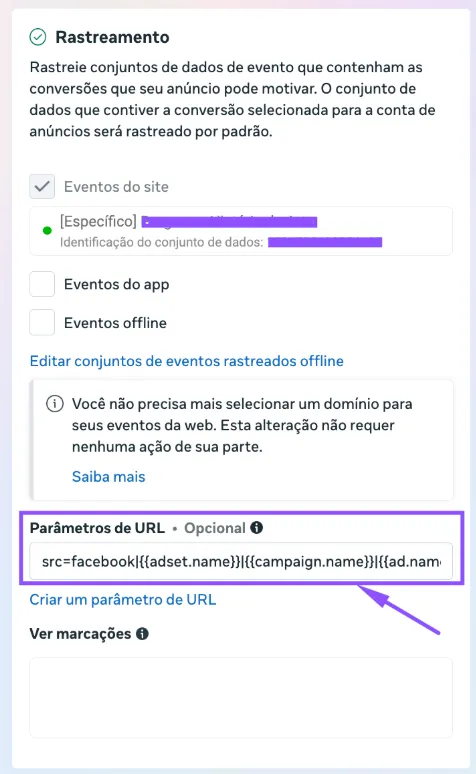
Paste it into the URL parameters field of all your ads in Ads Manager:
Step 5 — Install the UTM Passthrough Script
Section titled “Step 5 — Install the UTM Passthrough Script”Install the UTM Passthrough Script on all your sales pages, so the UTMs are automatically carried into the leads created in Tintim.
- You can install it on your site via Google Tag Manager or, preferably, directly in your site’s header.
Step 6 — Set the Attribution Mode and Naming Convention
Section titled “Step 6 — Set the Attribution Mode and Naming Convention”-
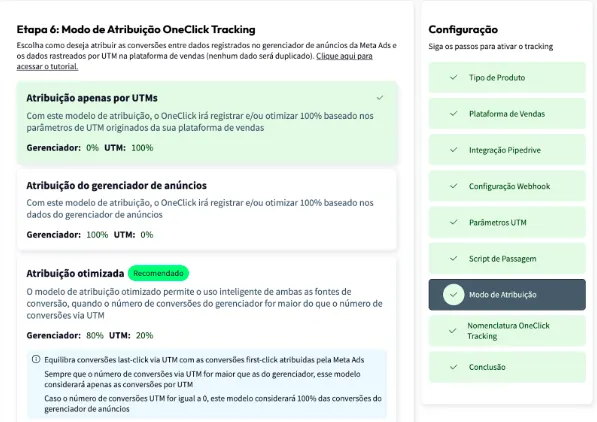
Set the Attribution Mode.
- Watch this video to understand each model.
- Click Continue.
-
Set the Naming Convention your campaigns, ad sets and ads will receive inside Ads Manager and click Next.
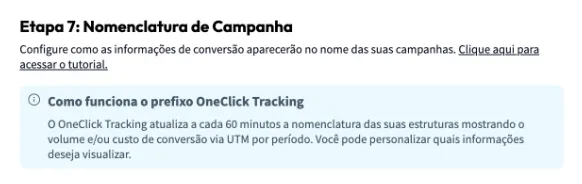
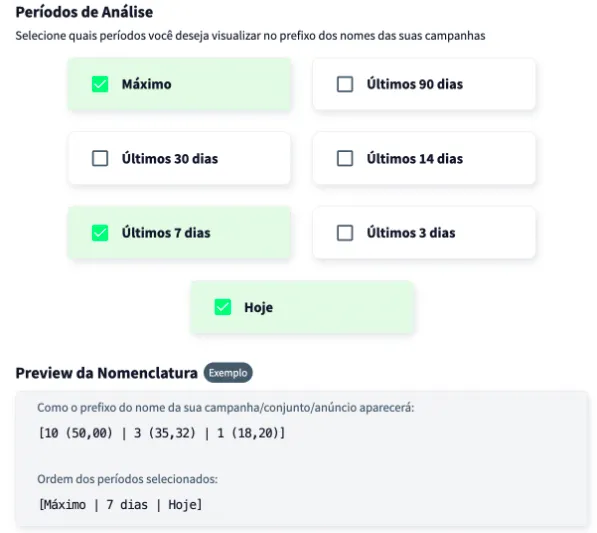
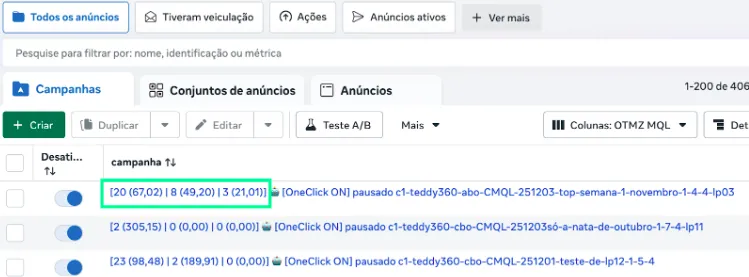
Wait at least 24 hours for the setup to take effect, and all your campaigns (those that receive conversions) will start recording conversions right inside Ads Manager.
Important Notes
Section titled “Important Notes”- OneClick Tracking processes Tintim’s
lead.createandlead_source.updateevents — that is, both the creation of a lead and a later update of its status can generate a conversion. Lead deletion events are not processed. - A lead is recorded as a conversion when its status matches one of the selected statuses, either at creation or in a later update. Each lead (identified by its phone number) generates at most one conversion per ad account: later status changes update that same conversion.
- For attribution to work, the lead must arrive with the ad’s origin: the campaign, ad set and ad Tintim itself identified (for example, on leads from WhatsApp ads) or the UTMs. Make sure your lead capture forms are sending the UTMs correctly.
- Each ad account has its own unique webhook URL. If you manage multiple accounts, create a separate integration for each one.
- Only campaigns created after the setup will have access to the “Maximum Period” data. This does not affect OneClick Ads optimization of older campaigns in any way.