
Greenn Integration
Learn how to set up OneClick Tracking on Greenn.
OneClick Tracking is a new feature for Meta Ads advertisers who use Greenn as their digital product sales platform. It provides immediate and accurate conversion tracking.
This solution corrects wrong attributions made by Meta, delivering real data based on UTMs and enabling safer scaling decisions.
With OneClick Tracking you see the volume of real conversions per period right in your Ads Manager, making for a quick and clear audit, without the need for complicated dashboards that have to be kept up to date.
Using your Greenn account’s webhook, OneClick takes into account both the UTM data and Meta’s data, without duplicating conversions. Each ad account gets a unique link.
Note: OneClick Tracking eliminates the need for extra tracking tools!
How to Connect OneClick Tracking to Greenn
Section titled “How to Connect OneClick Tracking to Greenn”-
Log in to your OneClick Ads account.
-
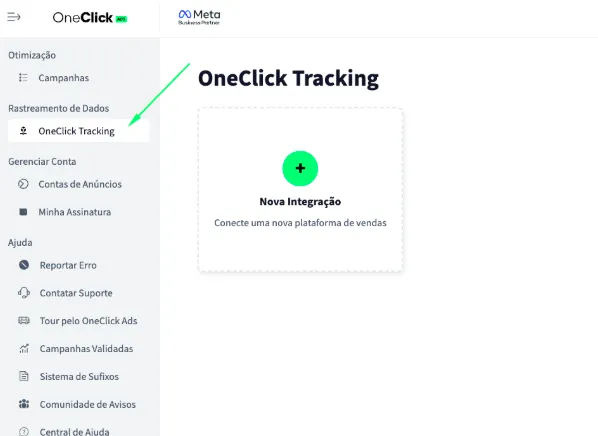
Go to the "OneClick Tracking" tab, available in the left sidebar of OneClick Ads.
-
Click "New Integration".
-
Select the "Digital products" product type and click Continue.
-
Select the "Greenn" platform and click Continue.
-
Copy the Webhook URL and add it inside Greenn following the steps below: a. Each ad account will have a unique link generated automatically. b. This link is what connects your account to Greenn and tracks conversions by UTM.
6.1. Log in to your Greenn account. a. Go to Configurações >> Integrações >> Webhooks (Settings >> Integrations >> Webhooks) in the Greenn menu.
6.2. Create a new Webhook. a. Paste the tracking URL provided by OneClick (step 6) into the “URL do webhook” (Webhook URL) field. b. Select the Venda aprovada (Approved sale) event. c. Save the configuration.
-
Copy the UTM Script generated in OneClick Tracking.
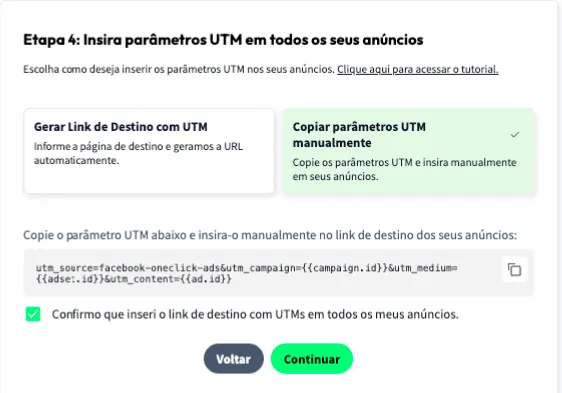
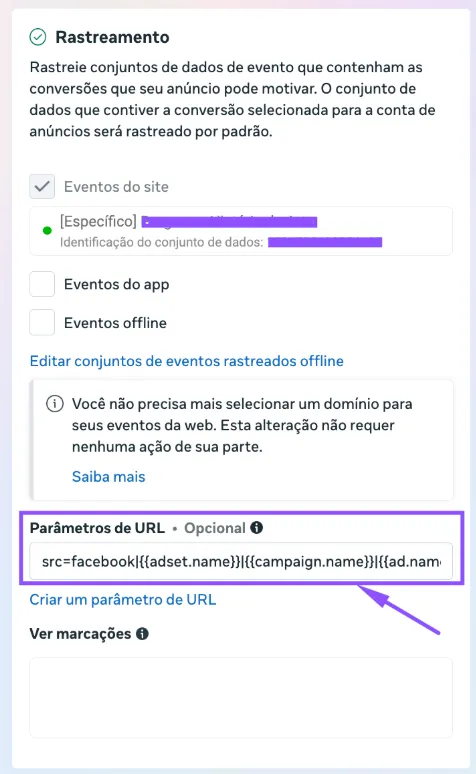
7.1. Paste it into the "URL parameters" field in ALL of your ads in Ads Manager, as shown below:
- Add the UTM Passthrough Script to all your sales pages, so the UTMs are carried through to the final checkout page: a. You can install it on your website via Google Tag Manager or, preferably, directly in your website's header.
-
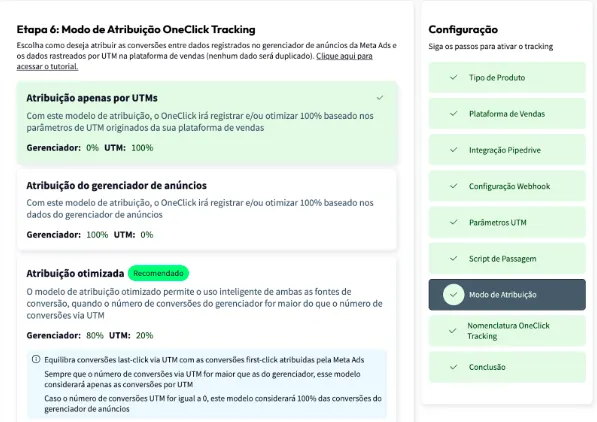
Set the Attribution Mode.
- Watch this video to understand each model.
- Click Continue.
-
Set the Naming Convention that your campaigns, ad sets and ads will receive in your Ads Manager and click next.
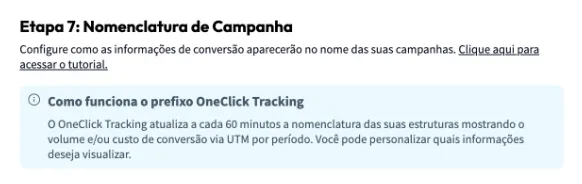
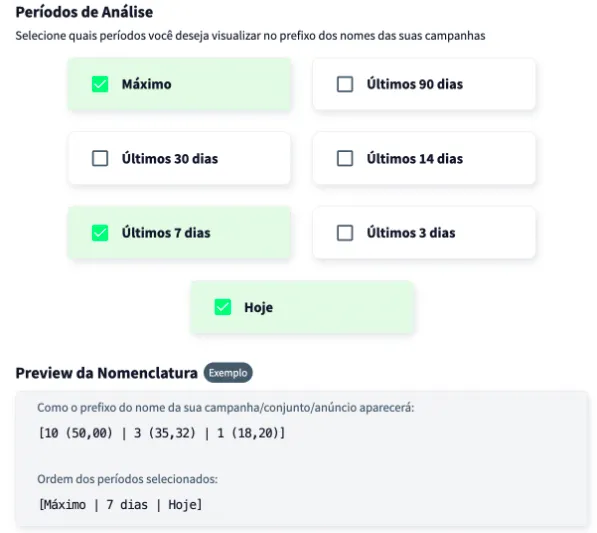
Wait at least 24 hours for the setup to take effect, and all your campaigns (those that receive conversions) will start recording conversions right inside Ads Manager.
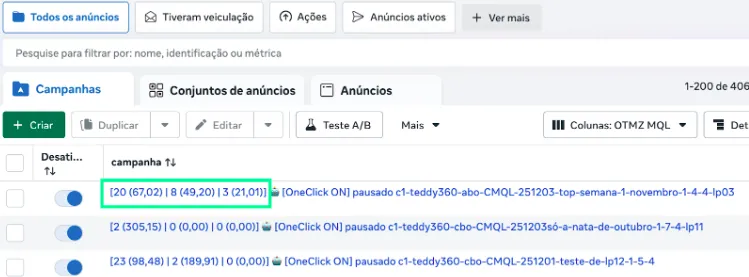
Important Notes
Section titled “Important Notes”- Only approved sales generate a conversion: declined, pending or failed-payment sales are received and ignored.
- Contract events don’t generate a conversion: only sale events count; contract (subscription) notifications sent by Greenn are ignored.
- UTM-based source: the UTMs are extracted from the sale metadata and from the parameters captured on the user’s first interaction.
- Suggestion: if you offer multiple products or funnels, consider using separate webhooks for each main flow, keeping the optimization clean.
- Only campaigns created after the setup will have access to the “Maximum Period” data. This does not affect OneClick Ads optimization of older campaigns in any way.