
LíderHub Integration
Learn how to set up OneClick Tracking in LíderHub.
OneClick Tracking is a feature for Meta Ads advertisers who handle WhatsApp leads with LíderHub’s AI agents. It links each lead to the campaign, ad set and ad that generated it, delivering immediate and accurate conversion tracking.
This solution corrects wrong attributions made by Meta, delivering real data and enabling safer scaling decisions.
LíderHub knows which click-to-WhatsApp ad each conversation came from. With a Custom Tool, the AI agent sends that information to OneClick Tracking at the moment you define in the prompt (for example, when the lead is qualified).
How to Plug OneClick Tracking into LíderHub
Section titled “How to Plug OneClick Tracking into LíderHub”-
Log in to your OneClick Ads account.
-
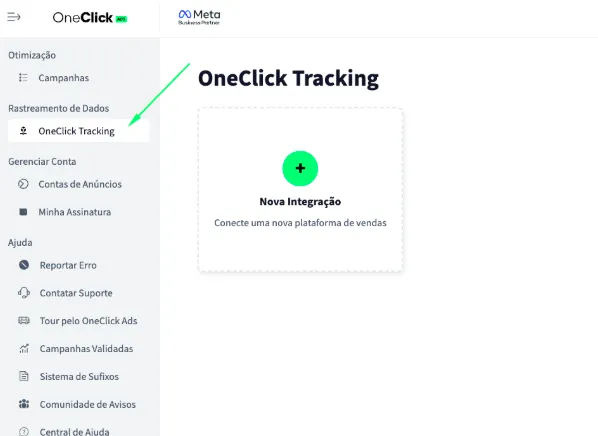
Go to the "OneClick Tracking" tab, available in the left sidebar of OneClick Ads.
-
Click "New Integration".
-
Select the "Lead Generation" product type and click Continue.
-
Select the "LíderHub" platform and click Continue.
-
Copy the Webhook URL generated by OneClick and register it in LíderHub as a Custom Tool following the steps below: a. Each ad account gets a unique link, generated automatically. b. This link is what connects your ad account to LíderHub.
6.1. In LíderHub, go to Configurações → Integrações → Custom Tool (Settings → Integrations → Custom Tool) and click Nova Chamada Personalizada (New Custom Call).
6.2. In Nome da chamada (Call name), use a short name such as
registrar_conversao_oneclick. The agent triggers the tool by this name (@ação).6.3. In URL do endpoint (Endpoint URL), paste the tracking URL provided by OneClick.
6.4. In Tipo de requisição (Request type), choose POST.
6.5. Turn on Body da requisição (Request body) and, in the JSON Schema, ask only for what describes the conversion, for example a field
etapadescribed as “The stage the lead is at”. There is no need to ask for name, phone or document: LíderHub already sends, on every call, the identification of the ad the conversation came from.6.6. Click Criar Chamada (Create Call).
6.7. In the AI agent’s prompt, say when to trigger the tool with the
@ação, for example: “When the lead is qualified, trigger @registrar_conversao_oneclick”. Each lead is counted only once, so it is fine if the agent triggers the tool more than once in the same conversation.
-
Copy the UTM Script generated in OneClick Tracking.
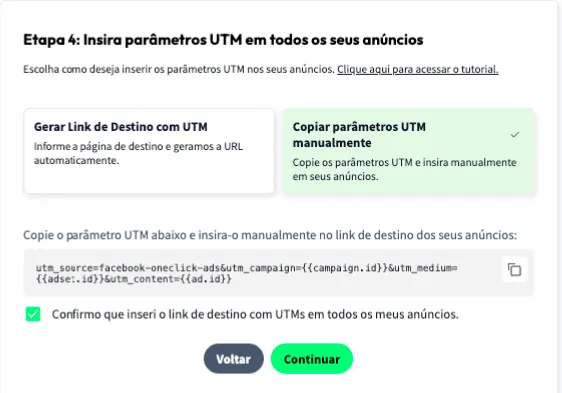
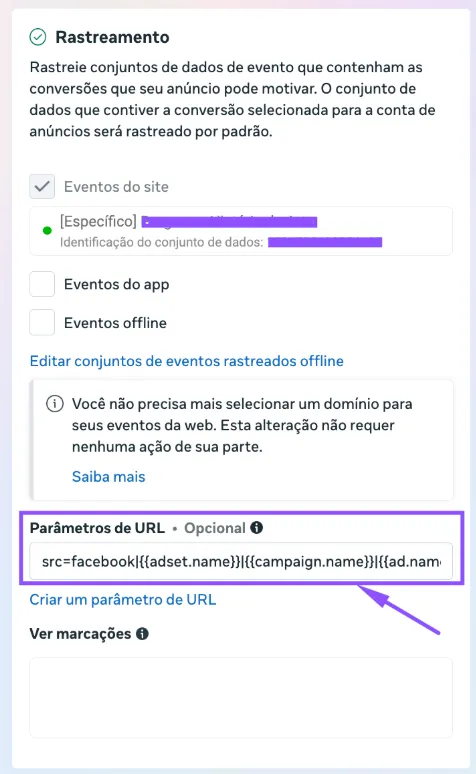
7.1. Paste it into the "URL parameters" field in ALL of your ads in Ads Manager, as shown below:
-
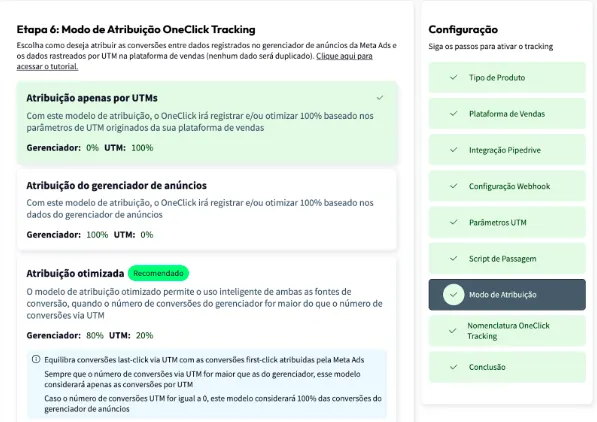
Set the Attribution Mode.
- Watch this video to understand each model.
- Click Continue.
-
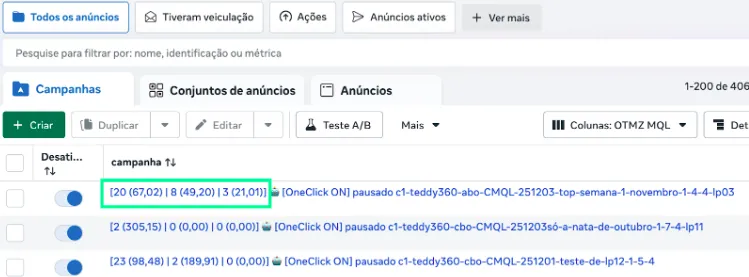
Set the Naming Convention that your campaigns, ad sets and ads will receive in your Ads Manager and click next.
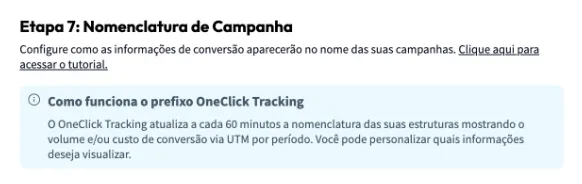
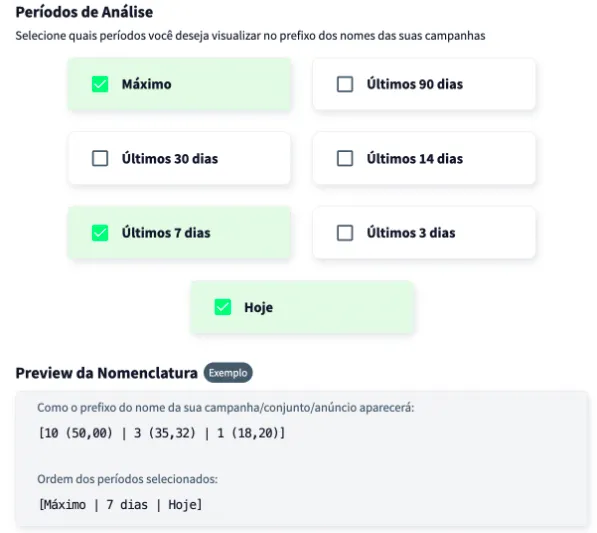
Wait at least 24 hours for the setup to take effect, and all your campaigns (those that receive conversions) will start recording conversions right inside Ads Manager.
Important Notes
Section titled “Important Notes”- Integration in testing. LíderHub has not published a complete example of a Custom Tool delivery yet. OneClick reads the attribution data LíderHub documents, and our team checks the first deliveries received. Deliveries are stored from the very first minute, so no lead is lost while the mapping is adjusted.
- A lead is recorded as a conversion with no value: OneClick Tracking counts the volume of leads, on the date the agent triggered the tool.
- The conversion moment is what the prompt defines. OneClick records the lead when the agent triggers the Custom Tool; if the prompt does not ask for it, nothing is sent.
- A lead is attributed only when the conversation started from a click-to-WhatsApp ad. A contact that arrived another way cannot be linked to any campaign.
- Only campaigns created after the setup will have access to the “Maximum Period” data. This does not affect OneClick Ads optimization of older campaigns in any way.